![Picture1-1.png]](https://faqs.safetynetsolutions.co.uk/hs-fs/hubfs/Picture1-1.png?width=36&height=18&name=Picture1-1.png)
Below is a concise guide to help you check whether your peripherals (camera, printer and scanner) need configuration in the SKYVISITOR Booker, and how to set them up for reliable daily use.
---
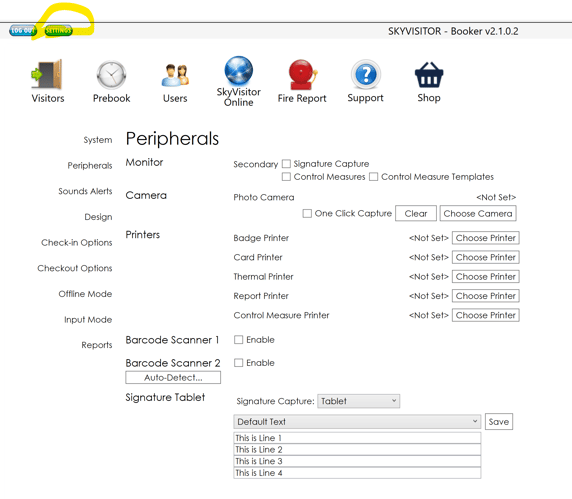
Accessing Peripheral Settings:
1. Open the 'Booker'.
2. Go to 'Settings' (top‑left).
3. Select 'Peripherals'.
If no devices are shown, you will need to configure them for that user.
---
Camera Configuration:
The camera captures images for passes and identification.
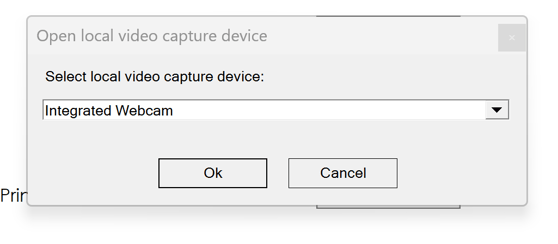
1. In 'Camera', click 'Choose Camera'.

2. Select the required camera from the list (provided by Windows).
3. Click 'OK'.
'One Click Capture' controls how photos are taken:
- 'Ticked': captures instantly with no preview. Faster, but you cannot adjust positioning.
- 'Unticked (recommended)': shows a preview so you can confirm the person is correctly positioned.
Use 'One Click Capture' mainly if you use a fixed photo position and want maximum speed.
---
Printer Configuration:
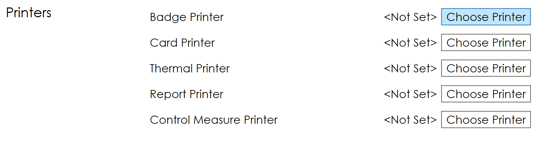
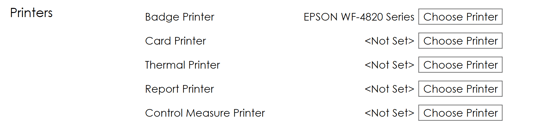
You can assign different printers for different pass types, for example:
-'Badge printer' for none thermal passes.
- 'Thermal printer' for thermal passes.
1. In 'Printer(s)', click 'Choose Printer'.
2. Select the printer from the Windows list.
3. Click 'OK'.
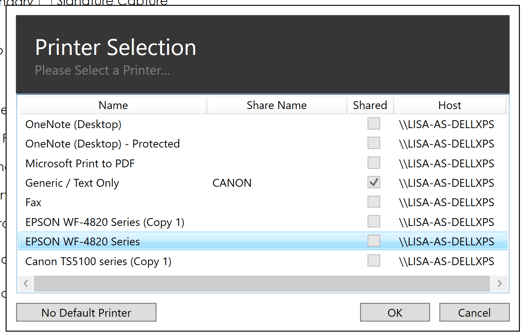
If you see a 'shared printer' tick box:
- Tick it if the printer is shared over the network.
- Leave it unticked if it is local to the machine.
Once saved, the chosen device name displays alongside each printer role (e.g. 'Badge Printer', 'Thermal Printer').
---
Scanner Configuration:
Barcode/QR scanners support fast check‑in and validation. If the scanner lights up and beeps but does not process reads, and a **printer selection** window appears when printing a pass, the COM Port is likely not set correctly.
Enabling the scanner:
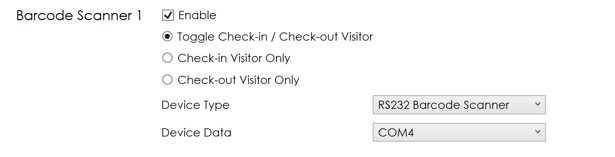
1. In 'Scanner(s)', tick 'Enable Barcode Scanner 1'.
2. A 'COM Port' drop‑down and 'Device Type' field will appear.
3. Set 'Device Type' to 'RS232'.
Choosing the COM Port:
The COM Port is a virtual port from the scanner’s drivers.
- If one 'COM Port' is listed: select it and test.
- If several 'COM Ports' are listed: the scanner has been reconnected previously, creating multiple ports. Try each COM Port in turn until the scanner works.
To stop the COM Port changing and make it stable:
1. Open 'Device Manager' in Windows.
2. Under 'Ports (COM & LPT)', right‑click the scanner’s COM Port → 'Properties'.
3. Go to 'Port Settings' → 'Advanced'.
4. Assign a fixed COM number (e.g. 'COM5'), then click 'OK'.
This helps the Booker recognise the scanner consistently, even after restarts or cable changes.
---
FAQs:
Q1. I cannot see 'Settings' in the Booker.
Settings access is controlled by 'Permissions'.
- If you are a SKYVISITOR administrator, sign in to 'SKYVISITOR.COM' or 'SKYVISITOR.CLOUD' and ensure your user role has permission to view and edit 'Settings'.
- If you are not an administrator, contact your internal SKYVISITOR owner or administrator.
Q2. I changed Settings but nothing has changed in the Booker.
Peripheral settings 'auto‑save', but the Booker must be restarted:
1. Check for the 'Restart Required' indicator (top‑right).
2. Close the Booker using the 'X'.
3. Log back in.
Your updated camera, printer and scanner settings should now apply.
Q3. The QR scanner still beeps but does not read, even after I set the COM Port.
1. Check whether more than one 'COM Port' is available in the scanner settings.
2. If so, select the 'other' COM Port, restart the Booker, and test again.
3. Repeat as needed until the read is processed correctly.
In many environments, testing each available COM Port and restarting between changes is the quickest way to identify the correct configuration.
Q4. The printer settings are correct but I am still having the issue.
Confirm your printer is online and working as expected when you go to your 'Printers and Scanners' section. You can do this by searching for 'Printers' in the search box on your tool bar. Next, check to see if there is another copy of the STAR installed by seeing if there is more than one Star Printer option in the drop down.
Q5. I've configured the settings but I still am unable to use the device.
Try checking that the device is turned on, plugged in to all devices necessary and check it is working by testing it with another user.
---
By completing these steps, you will:
- Configure the 'camera' for clear pass images.
- Route each 'pass type' to the correct 'printer'.
- Set up the 'scanner' for fast, reliable barcode and QR reads.
This supports smoother reception workflows, faster check‑in, and a controlled, professional experience for visitors and contractors.