![Picture1-1.png]](https://faqs.safetynetsolutions.co.uk/hs-fs/hubfs/Picture1-1.png?width=36&height=18&name=Picture1-1.png)
Email delivery issues can occur for several reasons, and understanding these helps you know what to check.
One common cause is that emails “bounce.” A bounce happens when an email cannot be delivered to the recipient’s mailbox. While this is happening, emails may not be received for a period of time. Another possibility is that messages are being marked as spam. It is important to check junk or spam folders and to search for “Skyvisitor” to see whether emails are being delivered but are not appearing in the main inbox.
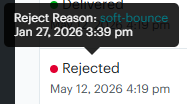
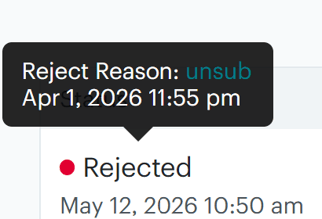
Emails can also be rejected if the recipient has unsubscribed. In this case, the email account has actively opted out of receiving these messages. This can affect several users at once, while others remain subscribed and continue to receive emails as expected.
To reduce the risk of future delivery problems, we recommend whitelisting all emails from `skyvisitor.com` and `skyvisitor.cloud`. Whitelisting tells your email system to treat messages from these domains as trusted. The steps to do this vary between email platforms, so please refer to your email provider’s guidance, your internal technical team, or your email platform settings to complete this configuration. However, these are the steps for two common platforms:
Outlook:
1. Safe Senders List:-
- Go to Settings > Mail > Junk email.
- Under Safe senders and domains, select + Add safe sender.
- Enter the email address or domain and click Save.
2. Mark as Not Junk: Open the Junk folder, right-click the email, and select Not Junk or Report as Not Junk
Gmail:
1. Add to Contacts: Open the email, hover over the sender's name, and click the "Add to Contacts" icon.2. Create a Filter (Best Method):
-
- Click the gear icon (Settings) > See all settings.
- Go to Filters and Blocked Addresses > Create a new filter.
- In the "From" field, enter the email address or domain (e.g.,
@example.com). - Click Create filter.
- Check Never send it to Spam and click Create filter.
3. Move from Promotions/Spam: Drag the email to the "Primary" tab. Select "Yes" to the prompt asking to do this for future messages.
---
FAQs:
I'm still not receiving email notifications.
You may also want to view another article describing how to whitelist the MailChimp IP range. Click here to find out more.