![Picture1-1.png]](https://faqs.safetynetsolutions.co.uk/hs-fs/hubfs/Picture1-1.png?width=36&height=18&name=Picture1-1.png)
If you have a Star MCL 32 printer with built in bluetooth connectivity, this guide will walk you through the necessary steps to set up this connection.
To begin, turn on the printer and hold the feed button on the front until you see the status light flashing on the front, the printer is now in pairing mode.
From here, go to Windows Settings -> Bluetooth & Devices -> Devices -> Add Device, the printer should now appear in the search for you to add the printer. Once added, the printer will start being setup automatically and display a 'Driver unavailable' message.
At this stage, if you don't already have the printer drivers installed, they will need to be installed from the Star Micronics website: https://starmicronics.com/support/products/mc-print3-support-page/?srsltid=AfmBOopxXSu29ZvDrLyhf3Hpf31vRaJnT1C9fEpljoQAWpFSNL2mekOd
Once downloaded and the setup file installed, the we can move onto the next stage of the setup. Back inside of the Windows device settings page, select the 'More device and printer settings' option located under the Related Settings section.
When the new window opens, right click the printer -> Properties -> Hardware, inside this section, you will see an entry with a (COM) number. This will need to be noted down for the next steps
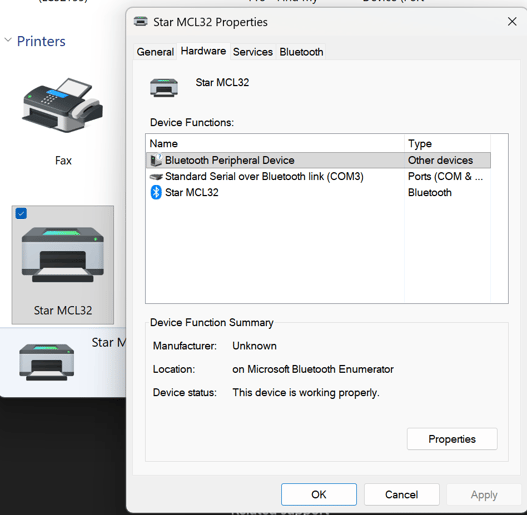
With the COM number, close the box and click 'Add printer' at the top of the window. When the printer search window opens, select 'The printer that I want isn't listed'. From here, select the bottom option of 'Add a local printer or network printer with manual settings'
On the following window, you will need to select the relevant COM number from the dropdown box 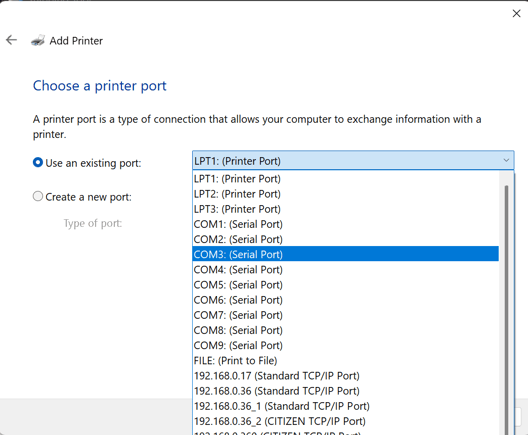
Click next and select the STAR MCL 32 Driver from the options, and proceed through the final steps. The Printer will now show inside of your available printers with the driver attached.
From here, follow all of the instructions and settings detailed in the standard setup guide: https://faqs.safetynetsolutions.co.uk/en/knowledge/star-mcl32ci-thermal-printer-setup
With the paper inserted and settings configured, you will finally need to select the printer for use in SkyVisitor. You can do this by loading up the application, making your way into Settings -> Peripherals.
I would recommend selecting the printer as both Badge and Thermal printer options.
The printer should now be ready to print a pass and test everything is working as expected!