![Picture1-1.png]](https://faqs.safetynetsolutions.co.uk/hs-fs/hubfs/Picture1-1.png?width=36&height=18&name=Picture1-1.png)
1. Ensure the SkyVisitor SMS option is enabled
Navigate to: System Admin -> SkyVisitor Configuration
From here, scroll down to the notifications section towards the bottom of the page and ensure the 'SkyVisitor SMS' option is ticked
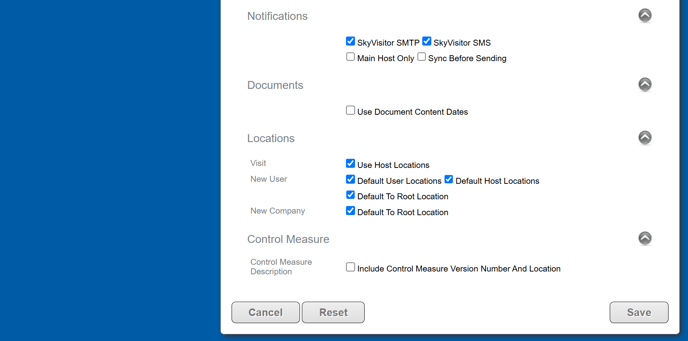
Click 'Save' to apply changes
2. Setup an API entry & generate an API Key
The client will need to access their Text Anywhere or Text Magic account and create an API entry SkyVisitor can use to send SMS requests. Once they have created an API entry, an API Key will be automatically generated (Below highlighted by the red box)
Both the USERNAME + API KEY will be required for the setup
-png.png?width=688&height=312&name=image%20(13)-png.png)
The username and API key will now need to be added into the SkyVisitor service provider details to create the link from SkyVisitor to the SMS provider.
3. Setting up the SMS link in SkyVisitor
Please navigate to 'System Admin' -> 'Locations' -> 'Notifications'
At this stage, select the 'SMS - Prebooked Visitor' notification template from the dropdown:
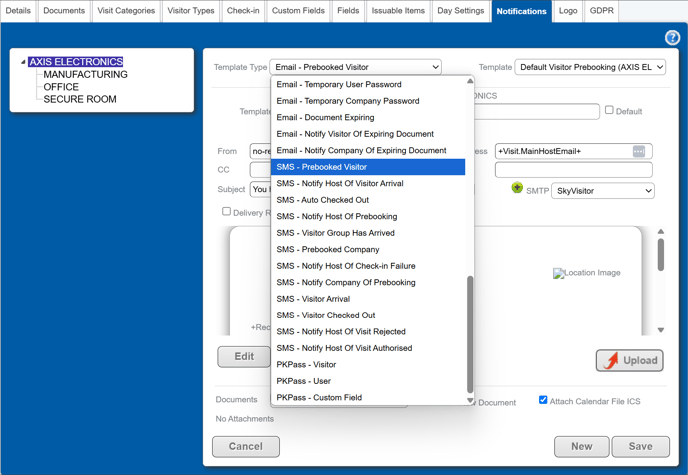
With the template selected, click on the green '+' next to 'Service Provider'

The SMS Provider Configuration window will now appear for you to setup the provider details.
Click the 'New' button next to the description box and set a description e.g. *Company name* SMS
After creating a description name, select the correct provider from the dropdown and insert the details from the SMS provider.
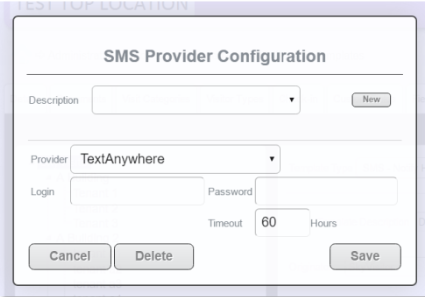
Username should be inserted into the 'Login' field and the API Key into the 'Password' field.
The default timeout of 24 hours can be left at its default value.
Click 'Save'
4. Insert a recipient phone number into host/visitor profiles and create a booking to test
All parties should now receive a text message with the pre-booking details!
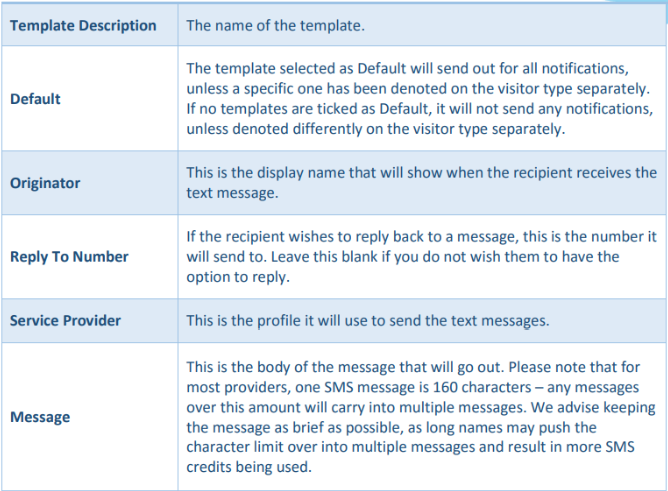
Important information to note regarding notification parameters