![Picture1-1.png]](https://faqs.safetynetsolutions.co.uk/hs-fs/hubfs/Picture1-1.png?width=36&height=18&name=Picture1-1.png)
Thanks for reaching out! If your QR scanner is beeping but nothing is happening, it often means the device recognises a scan event but isn't set up to perform an action.
Here are some steps to help troubleshoot this:
On SKYVISITOR Windows Apps (BOOKER / SKYTOUCH)
-
Check Application Settings: BOOKER APP
Make sure the scanner is enabled within your application. In the Booker Application, go to the Settings menu, select ‘Peripherals’, and confirm the scanner is listed as RS232 Barcode reader" and that the correct COM Port is selected.
The COMP Port is a virtual COM Port created by the QR Reader's software. It will create a new virtual COM Port each time it is plugged into a new/different usb port, so it is best practise to try and use the same one each time.
If you have more that one COM Port number to select from you need to keep switching it till you find the right one. This means, select one. Restart the Booker App, scan a code.
If the scanning carries out the right action (i.e. check in or out) then the number is correct, if not go back to Settings and select the next Com Port listed, then restart and check a read of a QR code again.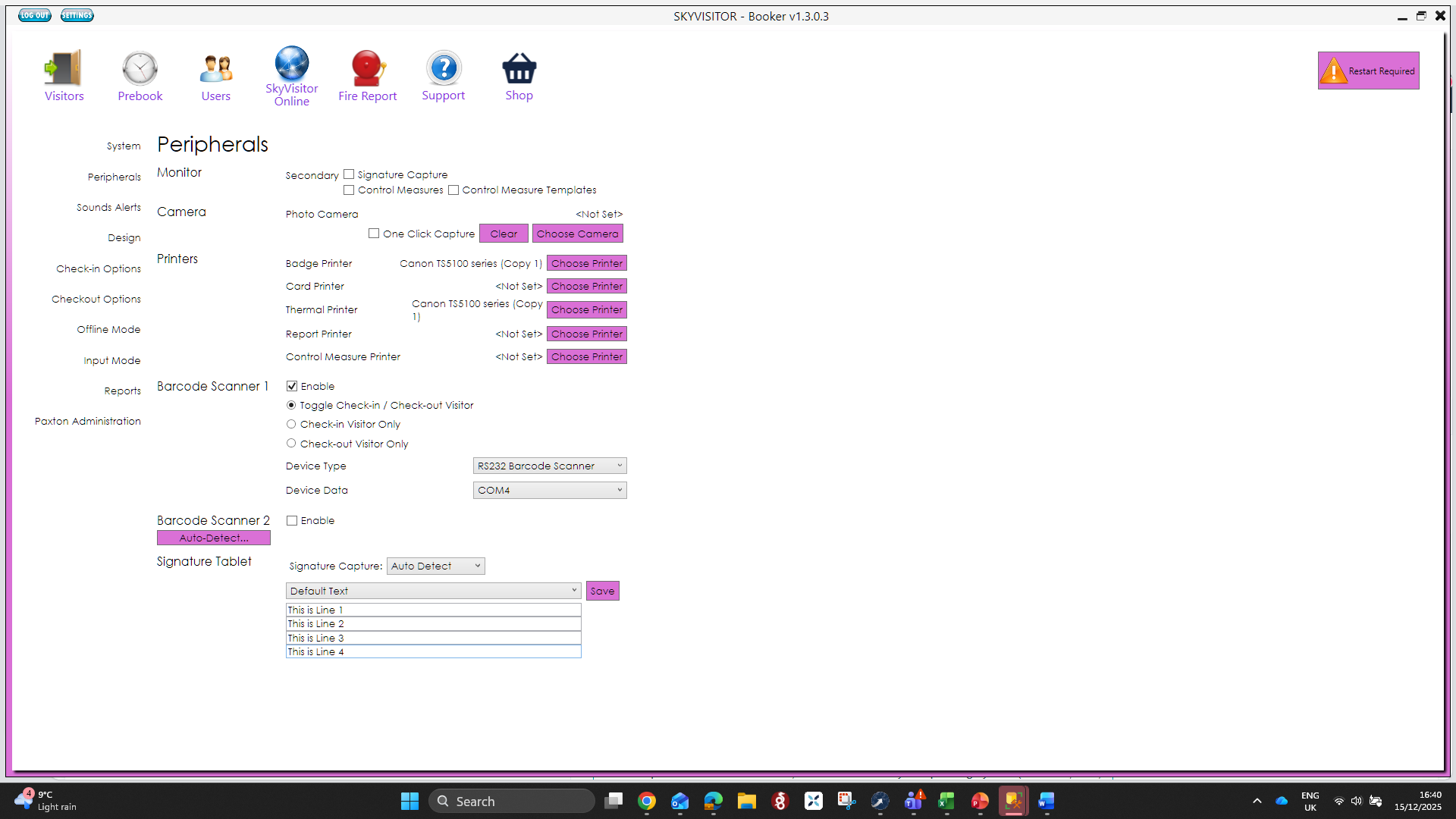 Save and restart the app.
 -
SKYTOUCH Windows App:
You need to access the 'secret' settings menu with a tap top centre left then a tap top centre right of the screen.
Then select Settings and log in as a permissioned user.
Then follow the steps for .1. above
SKYTOUCH.CLOUD
On the management system (like SkyTouch), verify that the QRCode and relevant settings in the STYLE XML are correctly set, including GUID and access codes. -
Hardware connection: Unplug and re-plug the scanner from your device. Listen for the connection beep and ensure it's recognised.
-
No beeping or light scan: This usually means that the scanner is not plugged in properly. Unplug and plug back in.
If these steps do not resolve the issue, let me know about your operating system (Windows, Mac, kiosk, etc.) and which application you're trying to use. I can then guide you further!
Or call our helpdesk 8-6 / M-F