![Picture1-1.png]](https://faqs.safetynetsolutions.co.uk/hs-fs/hubfs/Picture1-1.png?width=36&height=18&name=Picture1-1.png)
MICROSOFT ENTRA ID
Single Sign-On Setup Guide
Safetynet One | Customer administrator process
Version 1.0 • 9 November 2026
This guide combines Microsoft Entra administration and the Safetynet One setup wizard. It covers Basic SSO using OpenID Connect with just-in-time (JIT) provisioning. SCIM + SSO is visible as an alternative wizard mode but is outside the scope of these steps.
Who should use this guide- Safetynet One tenant administrator, to configure and test the integration.
- Microsoft Entra administrator, to approve organisational consent and optionally control access using Enterprise Application assignments and security policies.
- Microsoft Learn — User and admin consent overview: https://learn.microsoft.com/en-us/entra/identity/enterprise-apps/user-admin-consent-overview
- Microsoft Learn — Manage users and groups assignment: https://learn.microsoft.com/en-us/entra/identity/enterprise-apps/assign-user-or-group-access-portal
- Microsoft Learn — Manage application consent requests: https://learn.microsoft.com/en-us/entra/identity/enterprise-apps/manage-consent-requests
|
Phase |
What you do |
|
Prepare |
Identify your Entra tenant, choose pilot users, and agree initial access roles. |
|
1. Provider and mode |
Choose Microsoft Entra ID and Basic SSO. |
|
2. Connect sign-in |
Enter the Entra tenant ID, grant administrator consent, and verify the connection. |
|
3. Map access |
Configure JIT, default tenant roles, optional app-role mappings and resource roles. |
|
4. Test and confirm |
Enable sign-in, test using the organisation login URL, then optionally enforce SSO-only after emergency access is verified. |
Important: Microsoft sign-in and SSO-only enforcement are distinct actions. The wizard does not automatically enforce SSO when you complete the connection.
1. Prerequisites- Access to Tenant Settings in Safetynet One.
- An administrator account authorised to grant consent for applications in your Microsoft Entra tenant.
- Your Microsoft Entra directory (tenant) ID, which can be found in the Microsoft Entra admin centre under Entra ID > Overview.
- A pilot user account, ideally tested in a private browser window or a separate browser profile.
- A decision about first-sign-in account creation and the minimum roles that new users should receive.
- Sign in to Safetynet One as a tenant administrator.
- Open Management > Tenant Settings, then enter the Microsoft Entra ID setup wizard.
- Review the provider selection: Microsoft Entra ID is supported for this wizard.
- Under Choose your setup mode, select Basic SSO.
- Select Next.
- In Microsoft Entra admin centre (https://entra.microsoft.com), switch to the correct organisation and copy your Directory (tenant) ID from Entra ID > Overview.
- Return to Safetynet One and paste the tenant ID in Microsoft directory (tenant) ID.
- Select Next. Safetynet One saves the entered details and starts the Microsoft administrator consent sequence.
- Sign in to Microsoft as an administrator authorised to approve the requested permissions. Review the consent screen carefully.
- If the application and requested permissions are correct, select Accept. Microsoft returns you to the Safetynet One portal, outside the setup wizard. This is expected; consent is not the final step of connecting sign-in.
- From the Safetynet One portal, navigate to Management > Tenant Settings and reopen the Microsoft Entra ID setup wizard.
- Return to stage 2, Connect sign-in. The completed Microsoft administrator consent should already be associated with the saved directory connection.
- Configure the email domains that your organisation will use for Microsoft sign-in. Check the spelling and ensure each domain belongs to the intended organisation.
- Save or confirm the email-domain configuration as prompted by the wizard.
- Only after the email domains have been configured, continue to stage 3, Map access.
- Open https://entra.microsoft.com and switch to your organisation.
- Navigate to Entra ID > Enterprise applications > All applications.
- Find “SafetynetONE - Entra SSO” (or search by Application ID c08812b7-6363-4700-ba14-d8a80161fe87).
- Open the application and review Permissions and sign-in information.
- Under First sign-in provisioning policy, decide whether to tick Allow first sign-in account provisioning.
- Under Default tenant roles, select the baseline role(s) assigned to a new account. The screenshot shows User selected.
- If required, configure Microsoft app-role mappings: enter an app-role value and select the Safetynet One tenant role it should grant.
- If required, add Default resource-role assignments for specific resources.
- Select Save provisioning policy before clicking Next. Unsaved edits are not retained.
- Select Enable Microsoft sign-in. Read the confirmation dialog and confirm. This enables Microsoft sign-in but does not enforce SSO-only, enable SCIM or require pre-provisioning.
- Copy the Organization sign-in URL displayed on the page. This URL is unique to your Safetynet One organisation.
- Open the URL in a private browsing window or separate browser profile and sign in as a pilot user.
- Confirm that the user reaches the intended Safetynet One tenant and has the correct tenant/resource roles. A successful Microsoft sign-in alone is not sufficient.
- Return to the setup screen and reload the page to refresh the observed test status.
- Ask your Safetynet One operator to enrol the dedicated recovery administrator.
- Have the operator test its emergency sign-in according to the application instructions.
- Complete a successful pilot SSO sign-in and confirm the recorded status.
- Return to Test and confirm, use Retry if needed to refresh the emergency-access readiness check, then enable Require Microsoft sign-in if your organisation chooses to enforce SSO-only.
- Communicate the change to users; existing local and other sessions for this tenant may be invalidated.
|
Setting |
Value |
|
Safetynet One application client ID |
c08812b7-6363-4700-ba14-d8a80161fe87 |
|
Application type |
Safetynet One-owned multi-tenant application |
|
Authentication |
OpenID Connect (OIDC) |
|
Portal |
https://portal.safetynet.one |
|
Registered web callback 1 |
https://portal.safetynet.one/api/sso/customer/callback |
|
Registered web callback 2 |
https://portal.safetynet.one/api/auth/customer/microsoft/callback |
|
Identity matching |
Microsoft tenant ID (tid) + user object ID (oid) |
|
Sign-in provisioning mode |
Just-in-time (JIT); configurable in wizard |
|
Expected permissions |
openid, profile, email, User.Read |
You do not register your own SSO application or create an SSO client secret. The registered callbacks are technical reference details; customers do not normally need to enter them.
3. Step 1 — Select provider and setup mode
Basic SSO creates accounts and configures access at first sign-in according to your JIT policy. The SCIM + SSO option is for organisations that want separate automated user/group provisioning; it uses a separate provisioning Enterprise Application and additional steps, not covered in this guide.
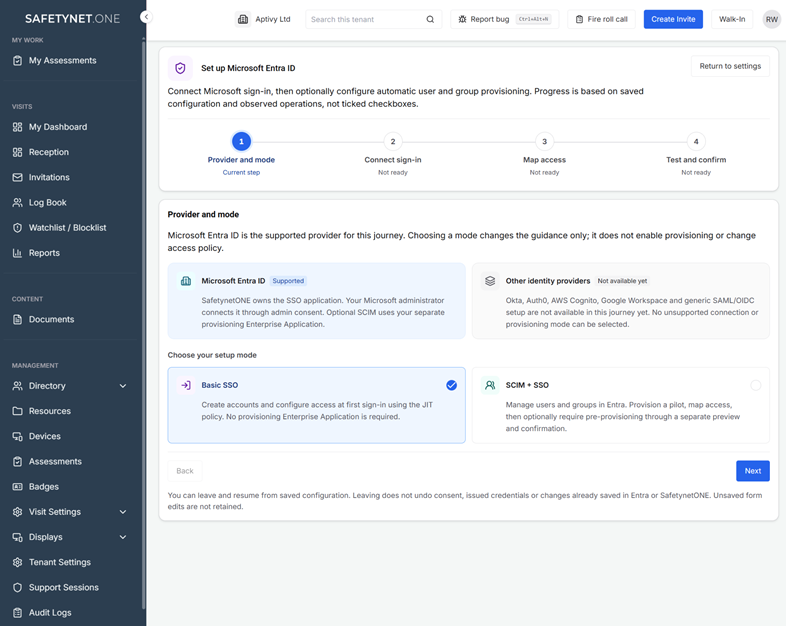
Screenshot 1. Provider and mode — select Microsoft Entra ID and Basic SSO.
4. Step 2 — Connect Microsoft sign-in
Make sure the Microsoft account and tenant selected for consent are the intended customer organisation, particularly if you administer multiple tenants. After consent, reopen the Safetynet One setup wizard to complete stage 2.
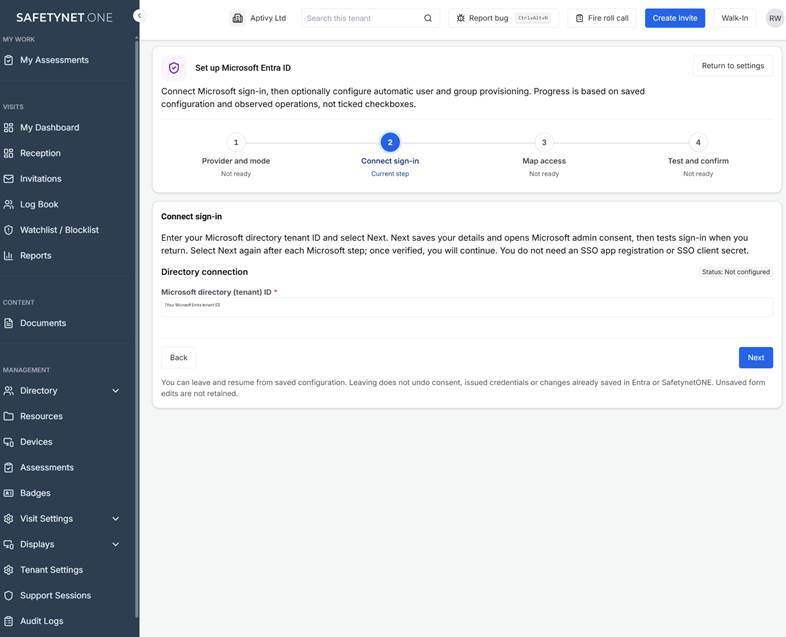
Screenshot 2. Connect sign-in — enter your own Microsoft directory (tenant) ID, not the example shown.
Return to stage 2 and configure email domains
After selecting Accept in the Microsoft permissions request, you are returned to the Safetynet One portal outside the wizard. To complete the connection:
Important: Do not skip the email-domain configuration because the Microsoft consent screen completed successfully. The connection setup is not ready to proceed until the relevant domains have been configured.
[Screenshot to add: stage 2 email-domain configuration after returning from Microsoft consent.]
5. Review the Microsoft permission request
During the consent step, Microsoft may display the application name “SafetynetONE - Entra SSO”. Compare the application details with the reference above and check the permissions before accepting. The supplied screenshot currently shows the publisher as “unverified”; customer administrators may need to follow internal approval procedures before accepting an unverified application.
|
Permission |
Reason requested |
|
openid |
Authenticate the user with OpenID Connect. |
|
profile |
Request basic identity claims. |
|
|
Request an email claim when one is available. |
|
User.Read |
Read the signed-in user’s basic Microsoft Graph profile. |
The consent screenshot also shows “Maintain access to data you have given it access to”.
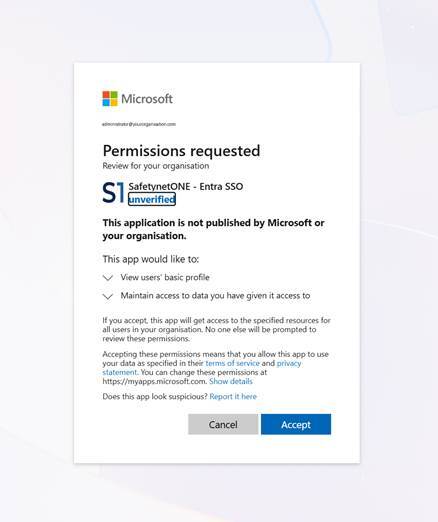
Screenshot 3. Example Microsoft organisational consent prompt. The account address has been replaced for privacy.
6. Verify Safetynet One in Microsoft Entra Optional — require user or group assignment
If you want only specified users or groups to authenticate through Microsoft Entra, open the Safetynet One Enterprise Application, select Properties, set Assignment required? to Yes and save. Then open Users and groups > Add user/group and assign your pilot users or groups. Leave the setting at No if your organisation does not require an Entra-level eligibility restriction.
Microsoft Entra group-based application assignment requires eligible licensing and does not automatically include nested group members. Assignment controls Microsoft authentication eligibility, not Safetynet One permissions.
Optional — MFA and Conditional AccessYour organisation controls MFA, Conditional Access and other Microsoft Entra policies. If desired, target the Safetynet One Enterprise Application from your Conditional Access policy. Test changes with your pilot account and follow your existing emergency-access procedures. Some Conditional Access functionality requires additional Microsoft Entra licensing.
7. Step 3 — Map Safetynet One accessOnce stage 2 is complete, including the email-domain configuration, continue to Map access. Choose the access given to newly provisioned users. Consent and Microsoft group names by themselves do not grant Safetynet One resource or administrative roles. You must explicitly configure these assignments.
The illustrated app-role values “customer.user” and “customer.tenantadmin” must correspond to app roles actually defined and assigned in your Microsoft Entra Enterprise Application. They are not Microsoft group names. Do not assume these mappings are active merely because they appear in the example.
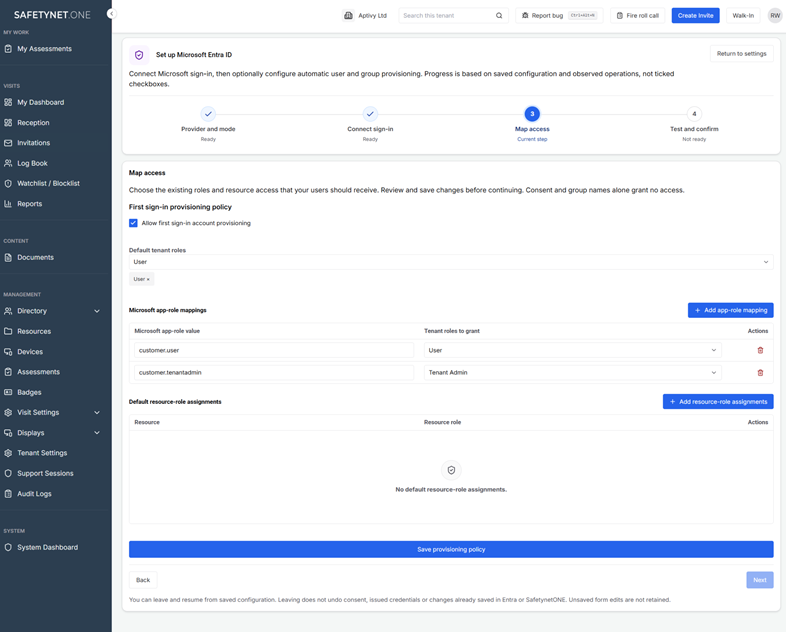
Screenshot 4. Map access — configure JIT, default roles, app-role mappings and resource-role assignments.
8. Step 4 — Enable, test and confirm
This final screen separates enabling Microsoft sign-in from requiring it for everyone. Complete the following actions in order.
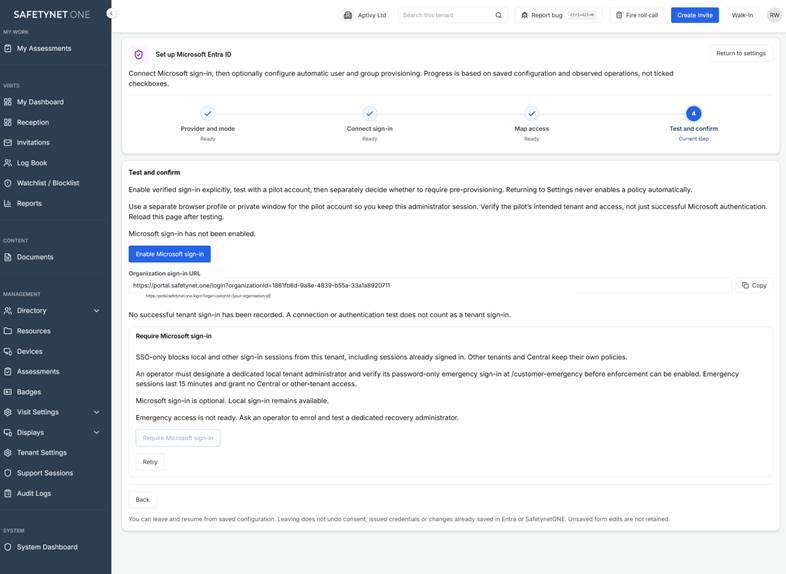
Screenshot 5. Test and confirm — enable Microsoft sign-in and copy the organisation-specific login URL.
9. What the enablement confirmation means
The Enable Microsoft sign-in confirmation dialog confirms that sign-in will become available for the verified tenant connection. It explicitly states that this action does not enable SCIM transport, require pre-provisioning, or disable local sign-in. You can therefore test SSO without immediately removing existing sign-in options.
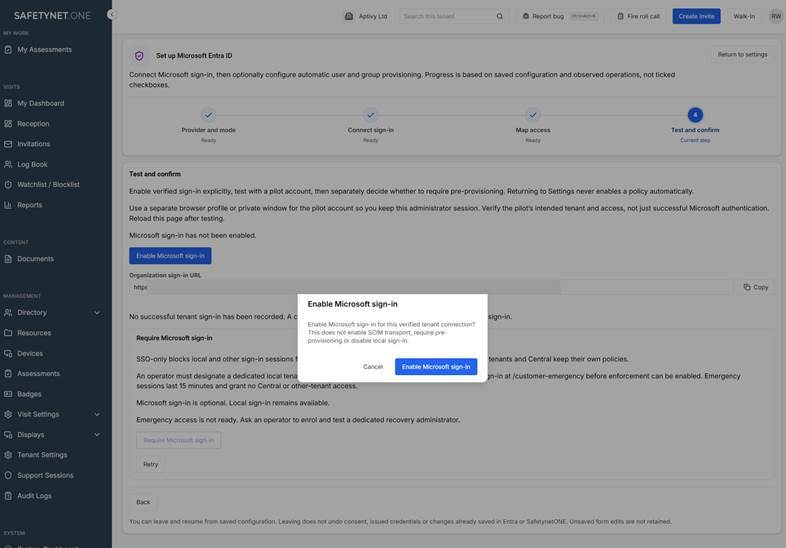
Screenshot 6. Enable Microsoft sign-in confirmation.
10. Optional — Require Microsoft sign-in (SSO-only)Requiring Microsoft sign-in is a separate, stronger tenant policy. The wizard states that SSO-only blocks local and other sign-in sessions for this tenant, including already signed-in sessions. Other Safetynet One tenants and Central retain their own policies.
Before the Require Microsoft sign-in control can be enabled, a Safetynet One operator must designate a dedicated local tenant administrator and verify that account’s password-only emergency sign-in at /customer-emergency. The screenshot states that emergency sessions last 15 minutes and provide no Central or other-tenant access.
Do not enable SSO-only until emergency access is confirmed and sign-in has been successfully tested. If the Require Microsoft sign-in button is disabled, follow the on-screen prerequisite messages rather than bypassing the safeguards.
11. Final acceptance checklist
☐ Correct Microsoft Entra tenant ID saved in Safetynet One.
☐ Microsoft administrator consent completed and verified.
☐ Returned to the portal, reopened wizard stage 2, and configured the organisation’s email domains.
☐ Safetynet One Enterprise Application present and reviewed.
☐ Pilot user assigned in Entra if assignment is required.
☐ First-sign-in provisioning policy saved with least-privilege default roles.
☐ Any Microsoft app-role mappings correspond to actual, assigned Entra app roles.
☐ Microsoft sign-in enabled explicitly.
☐ Pilot signed in through the organisation URL and received correct application access.
☐ MFA and Conditional Access tested where applicable.
☐ SSO-only enforcement remains optional; dedicated emergency administrator verified before enforcement.
12. Troubleshooting|
Issue |
Check |
|
Admin consent fails |
Ensure the account can grant consent and the correct Entra tenant was selected; review tenant consent restrictions. |
|
Enterprise Application not visible |
Search Enterprise applications by Application ID and confirm consent completed. |
|
Pilot user denied |
Review Entra sign-in logs, assignment-required setting and Conditional Access. |
|
Microsoft sign-in succeeds but access is wrong |
Review saved Safetynet One default tenant/resource roles and app-role mappings. |
|
New account not created |
Check Allow first sign-in account provisioning and any eligibility rules. |
|
Test status does not update |
Return to wizard and reload after completing the organisation-specific login. |
|
SSO-only button unavailable |
Confirm a dedicated emergency administrator is enrolled/tested and the pilot sign-in test is recorded. |
13. Support information
When requesting assistance, provide the approximate sign-in time, Microsoft Entra tenant ID, the affected user identifier, error message, and Microsoft correlation ID if shown. Never send passwords, access tokens or secrets.
Microsoft reference documentation
Screenshots are supplied examples of the Safetynet One implementation. Some example organisation data has been replaced to support reuse in customer documentation. Interface labels may evolve.