![Picture1-1.png]](https://faqs.safetynetsolutions.co.uk/hs-fs/hubfs/Picture1-1.png?width=36&height=18&name=Picture1-1.png)
1. Unbox the printer, plug it into power socket and connect the USB cable from the printer to PC
2. Insert paper into the pull-out tray and move the gaurds to rest against the A6 Paper passes
3. Turn on the printer
--------------------------------------------
Software Setup
--------------------------------------------
1. Install HP Color Laser 150nw printer drivers from HP Support Website
https://support.hp.com/bg-en/drivers/hp-color-laser-150-printer-series/model/24494355
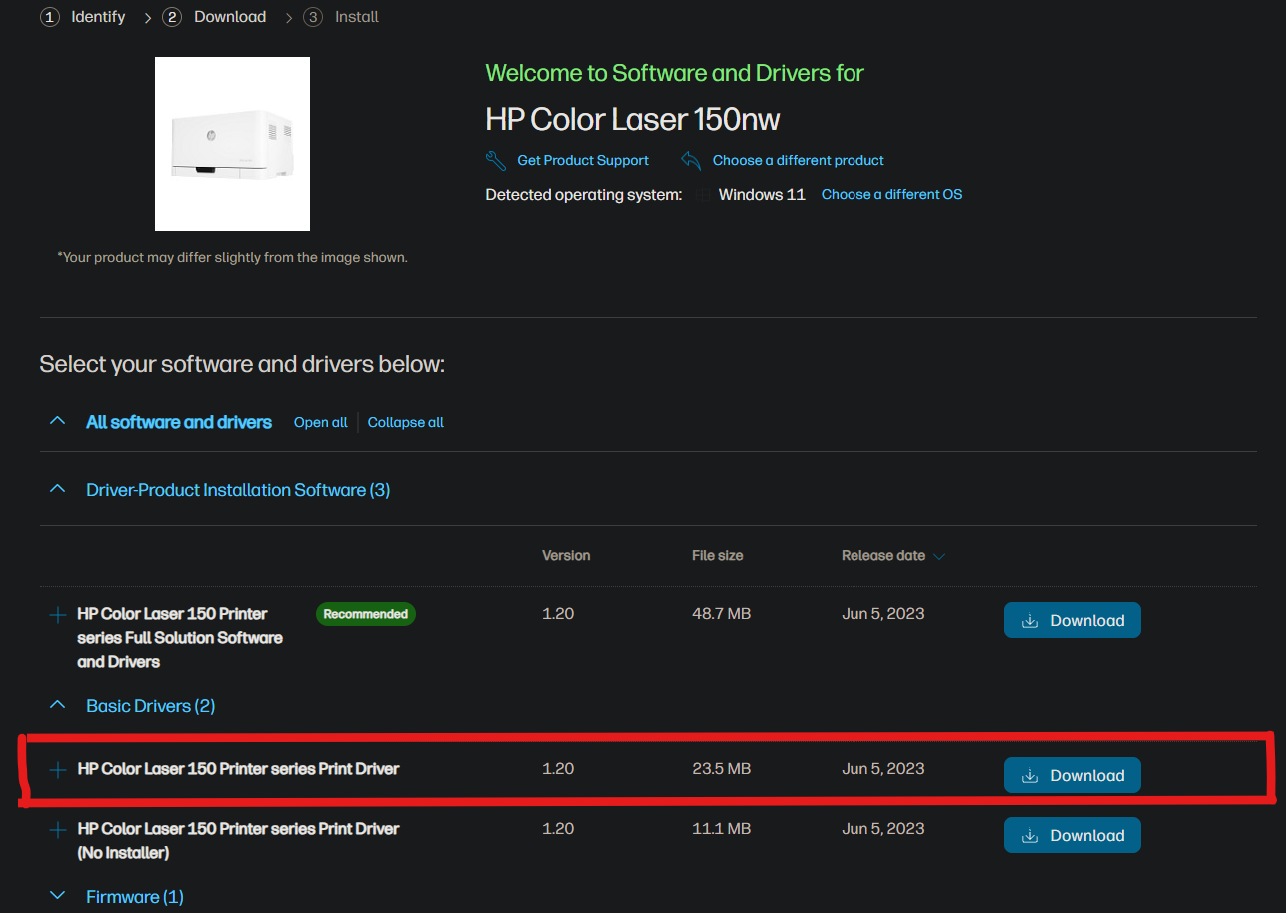
2. Run the installer, select the connection type and follow the installer on-screen instructions to setup the connection to the printer.
3. Once installed, navitgate to SETTINGS -> BLUETOOTH & DEVICES -> MORE DEVICES AND PRINTER SETTINGS
4. With Control Panel open, right click the printer and select 'PRINTER PROPERTIES'
5. Click on the 'ADVANCED' tab and where the driver is stated in the dropdown, switch this to 'UNIVERSAL PRINT CLASS DRIVER' and click 'APPLY' when the driver has finished the switch.
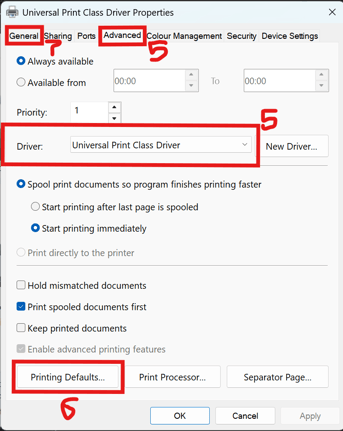
6. Select 'PRINTING DEFAULTS' at the bottom of the Advanced tab, when the new window opens, select the 'Advaced...' option and change the paper size to A6. 'APPLY' & 'OK'
7. Select the 'GENERAL' tab, 'PREFERENCES' then select the same 'Advaced...' option and change the paper size to A6. 'APPLY' & 'OK'
8. From the Booker application, Click 'SETTINGS' in the top left, 'PERIPHERALS' and select the printer from the printer options.
9. Print a test pass to ensure printing as expected.