![Picture1-1.png]](https://faqs.safetynetsolutions.co.uk/hs-fs/hubfs/Picture1-1.png?width=36&height=18&name=Picture1-1.png)
- Firstly, you will need to install Azure storage explorer:
https://go.microsoft.com/fwlink/?linkid=2216182https://go.microsoft.com/fwlink/?linkid=2216182
- You can use all the default settings when installing. Once installed, you will be asked to log in with your Microsoft account to be able to access the storage explorer.
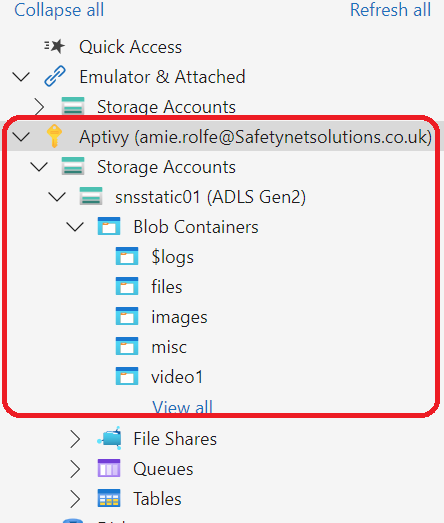
- Once logged in, you will need to expand 'Aptivy' (the email address you are logged in with will show next to this) > Expand Storage Accounts > Expand snsstactic01 (ADLS Gen2) > Expand Blob Containers.
Once you have expanded Blob Containers you will be able to see the same File names that were on static.com - video1 contains the clients video files and you can then drag and drop the file you need to upload.
- You will then need to make sure you have the correct link in the SkyVisitor screen designer - this will still start with https://static.skyvisitor.com...